Step 1
Choose The Photo Experience And Upload Your Home
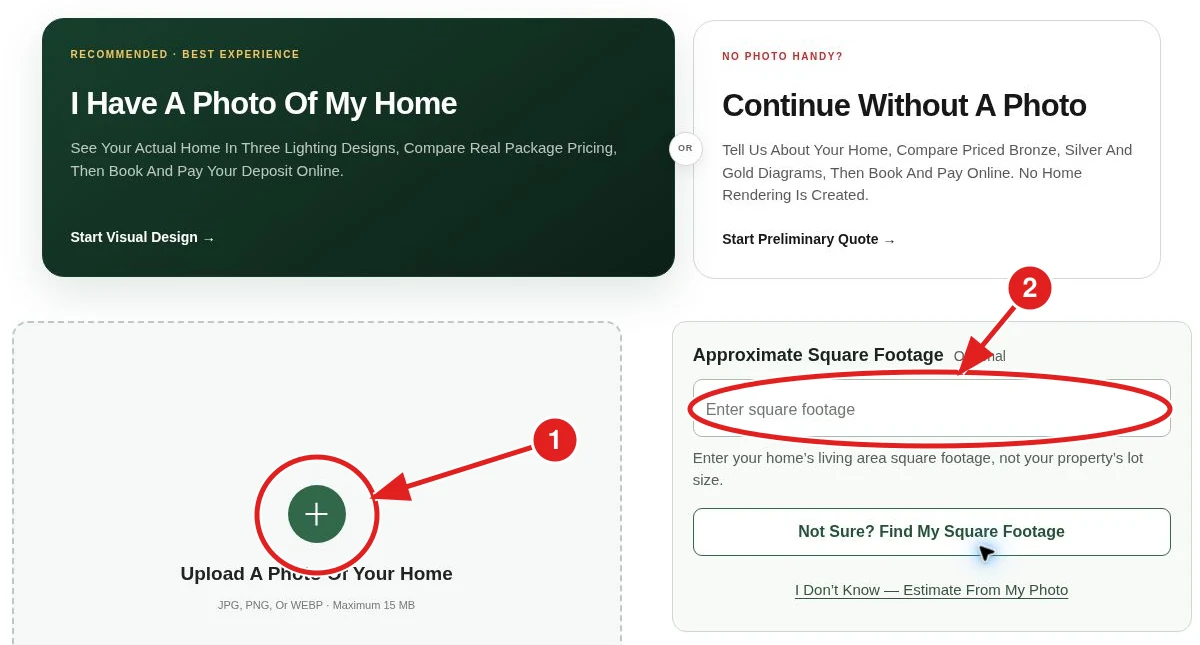
Open Instant Quote. Choose I Have A Photo Of My Home for designs based on your house. Then tap the upload area and choose one photo from your device.
- Tap Upload A Photo Of Your Home. Use a JPG, PNG, or WEBP file no larger than 15 MB.
- Enter your home’s approximate living area square footage, if you know it. This is not the lot size. Use Not Sure? Find My Square Footage for help, or the photo-estimate option if you do not know.
For the clearest design, use a bright, sharp photo showing the entire front of the home, including the roof peaks, windows, doors, and visible corners. Step back enough to avoid cutting off the roof. If you do not have a photo, the separate Continue Without A Photo option provides a preliminary quote with diagrams instead of a rendering of your home.
Step 2
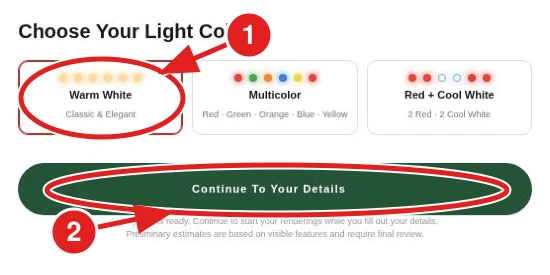
Choose Your Light Color And Continue
Choose the color you want to see on your home. The tool offers Warm White, Multicolor, and Red + Cool White. The selected option has a highlighted border. Our suggestion: Warm White suits a classic, understated look; Multicolor creates a playful display; Red + Cool White gives a coordinated candy-cane effect.
- Tap your preferred color tile.
- Tap Continue To Your Details once the photo is ready.
If you selected the wrong photo, use Change Photo on the uploaded image. Your photo supplies the visual starting point; the next screen gathers the installation details that belong with your quote.
Step 3
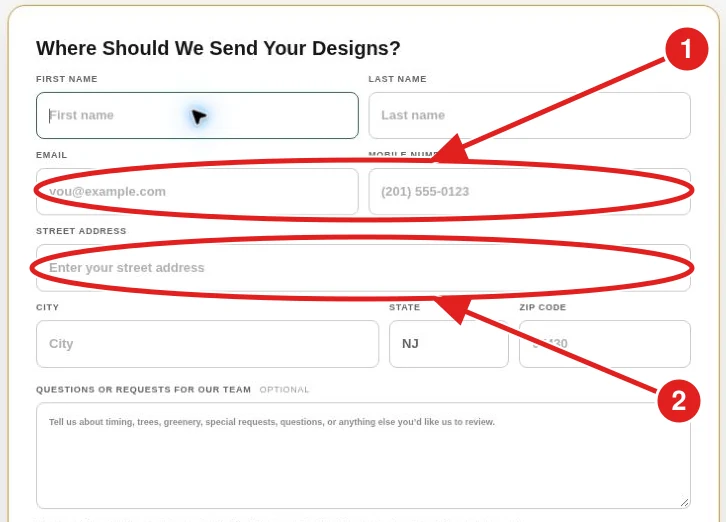
Enter Your Contact And Installation Details
Fill in your first and last name, email, mobile number, and installation address. Check the email carefully so your designs and follow-up reach the right place. Use the address where the lights will be installed.
- Complete the contact fields, including email and mobile number.
- Enter the street address, city, state, and ZIP code.
The optional questions box is useful for explaining a particular tree, timing preference, or special request. These notes go to the team for separate review; they do not automatically change the instant renderings or prices. Select any priced add-ons later in the customization step.
Step 4
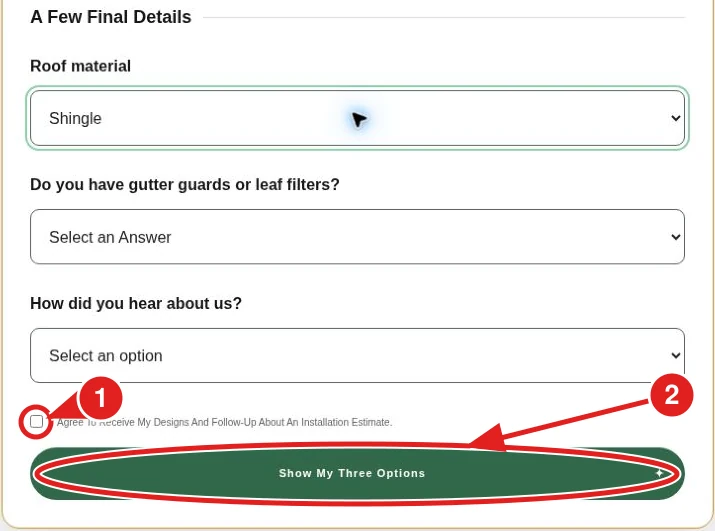
Answer The Final Questions And Request Your Options
Choose the roof material, answer whether your home has gutter guards or leaf filters, and tell us how you heard about the company. Use I’m Not Sure where offered if you do not know an answer.
- Read the consent statement and check its box if you agree to receive your designs and estimate follow-up.
- Tap Show My Three Options.
Allow the tool to prepare your designs. If it flags an incomplete field, return to that field and enter the missing information. Keep the page open while it works rather than starting another submission.
See the possibilities for your home.
Compare Packages On Your HomeStep 5
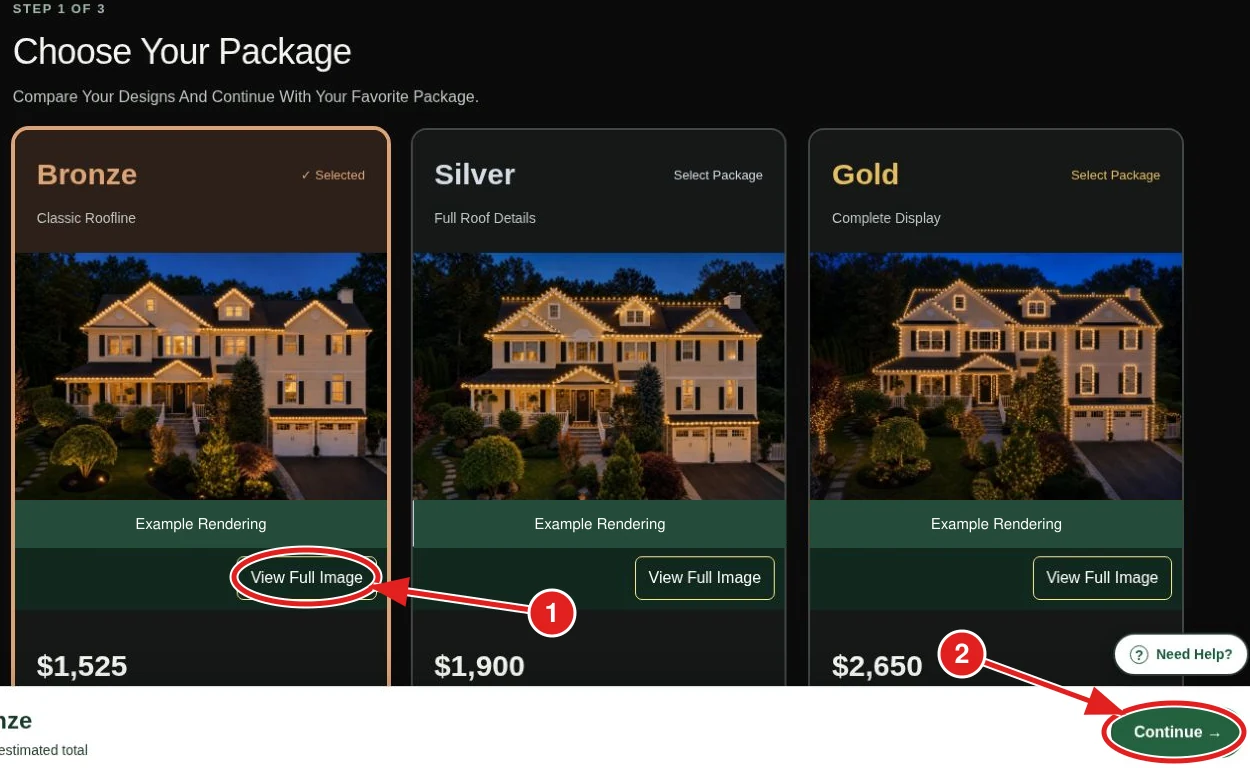
Compare Your Packages And Choose A Starting Point
Review Bronze, Silver, and Gold. Compare the rendering, the displayed price, and the written inclusions. On a smaller screen you may need to swipe or scroll to see the other packages.
- Tap View Full Image to examine a rendering more closely.
- Use Continue With Bronze, Continue With Silver, or Continue With Gold for your preferred option. The bottom Continue button advances with the currently selected package.
Bronze emphasizes the front roofline. Silver adds Roof Ridges & Roof Hips. Gold adds both side rooflines, two vertical corner edges, and a front door outline. Read the comparison table and your specific proposal’s inclusions rather than assuming every illuminated feature in a preview is included. Our suggestion: choose Bronze for a simple front outline, Silver to emphasize the upper roof, or Gold when the sides, corners, and entrance are important parts of the view.
Step 6
Explore Recommended Add-Ons
The next screen is Customize Your Display. Your selected package and estimated total remain visible while you browse recommendations.
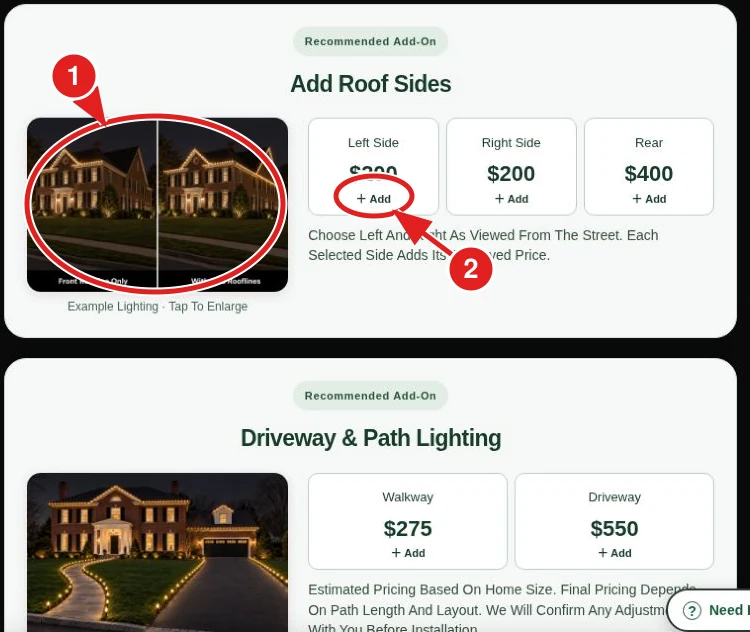
- Tap an example photo to enlarge it and see the lighting treatment.
- Tap + Add on an option you want. Read whether the price is for one item, one side, or a complete selection.
For items with quantities, check the count after adding them. For columns, review the number of columns and choose matching lights or pre-lit garland. For left and right rooflines, use the view from the street. A recommended item is optional; it is not a required extra. Our suggestion: decide whether you want to emphasize the house, entrance, or landscaping first. Add the feature that supports that goal, then check how it changes the total.
Step 7
Open The Full Add-On Categories
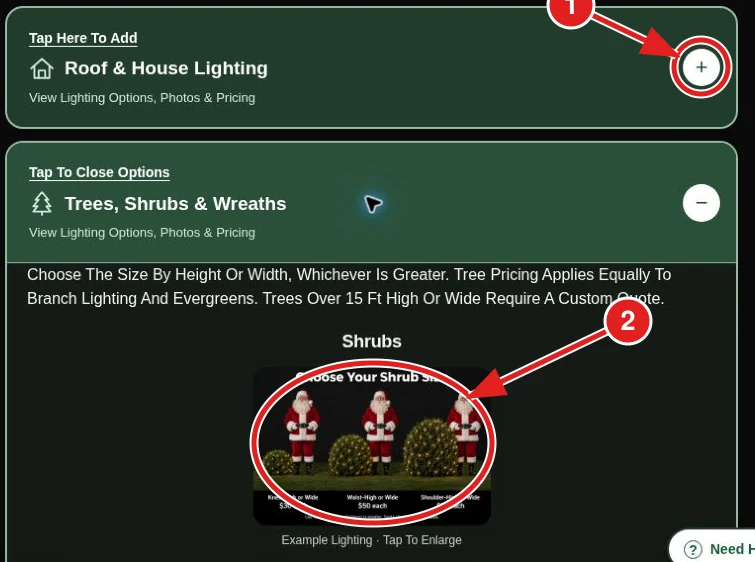
Scroll farther down to find the expandable categories. Roof & House Lighting contains architectural options. Trees, Shrubs & Wreaths contains landscape and decorative options.
- Tap the category bar or its plus symbol to open the available choices.
- Read the example photos and size descriptions before selecting an item.
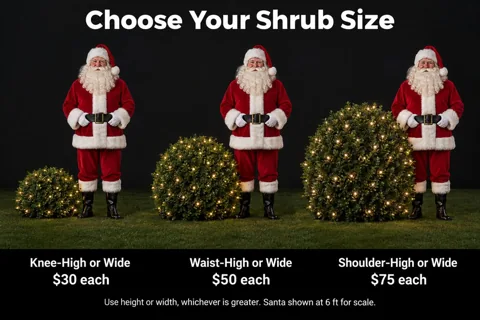
Choose tree and shrub size by height or width, whichever is greater. Use the custom-quote option for trees over 15 feet instead of selecting a smaller size. For wreaths, check the diameter and quantity. Review Your Updated Price when you finish, then use Continue To Schedule & Pay or the bottom Continue button.
A Quick Guide To Your Add-Ons
Pick the details that make the biggest difference to how you see your home. Start with one feature you love, check the updated total, and build from there. The options below explain what each add-on does and when it may suit your property.
Roof Ridges & Roof Hips
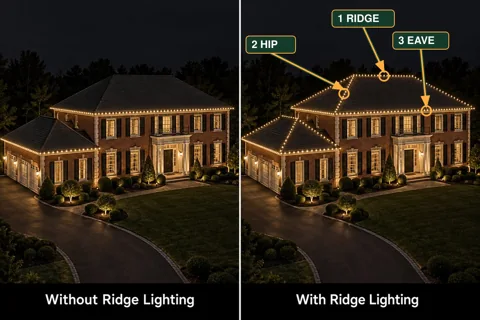
The ridge is the high, usually horizontal line where roof slopes meet. Hips are the diagonal outside intersections between roof slopes. Lighting these adds definition above the lower roof edge.
When To Choose It: Consider this if your upper roof shape is visible from the street and you want more architectural detail. Silver and Gold already include this coverage.
Left & Right Side Rooflines
These runs continue the roof outline around the sides of the house. Left and right are identified while looking at the home from the street.
When To Choose It: Especially useful for a corner property or a driveway that approaches from the side. Gold already includes both sides; check before adding extra coverage.
Rear Roofline
Lighting along the roof perimeter at the back of the home. It is a separate area from the front and side rooflines.
When To Choose It: Consider it if you enjoy the view from a backyard or patio, or if the rear is visible from another approach. Front-only photos may not show this area.
Vertical Corner Edges
A line of lights running down the outside corner where two walls meet. This highlights the height and shape of the house below the roof.
When To Choose It: A good addition when you want more definition on a tall facade. Gold includes two main front-facing corners; additional corners are separate.
Window Outlines
Lights follow the perimeter of selected windows to emphasize their shape and placement. Each selected window counts toward your quantity.
When To Choose It: Choose a prominent window or a balanced group across the front. You can leave other windows dark to keep the design focused.
Front Door: Lights Or Garland
Matching lights create a simple outline around the entrance. Pre-lit garland adds greenery, texture, and lights around the opening.
When To Choose It: Choose lights for a clean architectural look, or garland for a fuller, traditional entrance. Gold includes one matching-light door outline; garland is a different treatment.
Garage Doors: Lights Or Garland
A light outline or garland treatment frames each selected garage-door opening. Count the openings you want decorated.
When To Choose It: Worth considering when the garage is a large part of the street view. Choose one treatment per opening so you are not selecting overlapping options.
Column Lighting
Matching lights wrap the columns; pre-lit garland adds a spiral of greenery and light. The column count affects the total.
When To Choose It: A natural choice for a home with a prominent porch. Check the detected number of columns, then coordinate the treatment with your front door.
Walkway Lighting
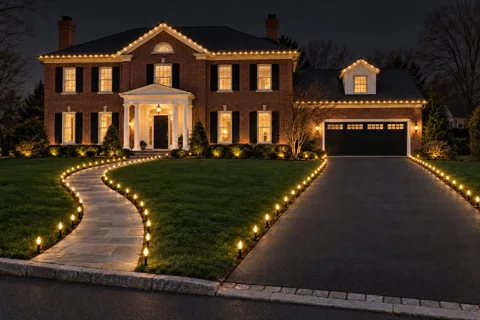
Ground-level lights trace the path toward your entrance. They bring the holiday design down from the roof and into the approach.
When To Choose It: Consider this when you want a welcoming route from the driveway or sidewalk to the door. Review the path-length note in your proposal.
Driveway Lighting
Ground-level lights frame the driveway edges, extending the display across more of the property. This is separate from walkway lighting.
When To Choose It: A good option when the driveway is an important part of the arrival view. Compare it with walkway lighting and choose the route you most want to highlight.
Shrub Lighting
Lights cover selected shrubs or bushes near the house, entrance, or yard. Size and quantity determine the selection.
When To Choose It: Try a coordinated group near the entrance to connect the roofline with the landscaping. Choose size by height or width, whichever is greater.
Trees & Evergreens
Lighting highlights selected branches or an evergreen’s shape. The tool groups options by tree size.
When To Choose It: Start with one tree that is clearly visible from the street or driveway. Choose by height or width, whichever is greater; trees over 15 feet require a custom quote.
Lit Wreaths
A lighted wreath creates a round decorative focal point on an entrance, wall, or other suitable location. Options are listed by diameter.
When To Choose It: Consider one above the entrance or on a prominent facade. Choose a size that suits the mounting area and remains noticeable from your usual viewing distance.
Check What You Already Have: Silver includes Roof Ridges & Roof Hips. Gold also includes both side rooflines, two vertical corner edges, and one front door light outline. Your written proposal controls the exact scope. Select extra quantities only for additional locations, and choose lights or garland for each opening or column.
Not Sure Where To Start? Try One Of These Combinations
- Simple And Elegant: Bronze with one well-placed wreath. The front roofline establishes the shape, while the wreath gives the eye a focal point.
- A Welcoming Entrance: Your preferred roof package with front-door garland and walkway lighting. This concentrates the detail around the approach to your door.
- More Architectural Detail: Silver if your roof shape is the standout feature; Gold if the side views and vertical corners matter too.
- A House And Garden Display: Your preferred roof package with one featured tree or a coordinated group of shrubs. This extends the design into the yard.
These are optional design ideas, not preset bundles. Compare a smaller package with one favorite add-on against a larger package with fewer extras, then choose the complete combination that best fits your priorities and budget.
Step 8
Choose Your Installation Window
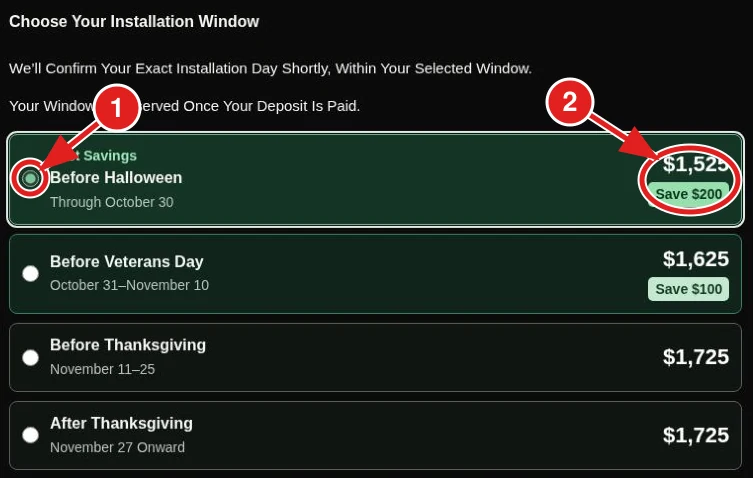
The Schedule & Pay screen shows available installation windows and the total associated with each. Compare Before Halloween, Before Veterans Day, Before Thanksgiving, and After Thanksgiving.
- Tap the circle beside your preferred window.
- Review the total and any installation savings displayed for that choice.
A window is a scheduling range, not an exact appointment. The team confirms the installation day within your selected window. The screen explains that your window is reserved once the deposit is paid. If you choose an earlier installation, the lights can remain off until you are ready to display them.
Step 9
Review The Total And Choose How To Pay The Balance
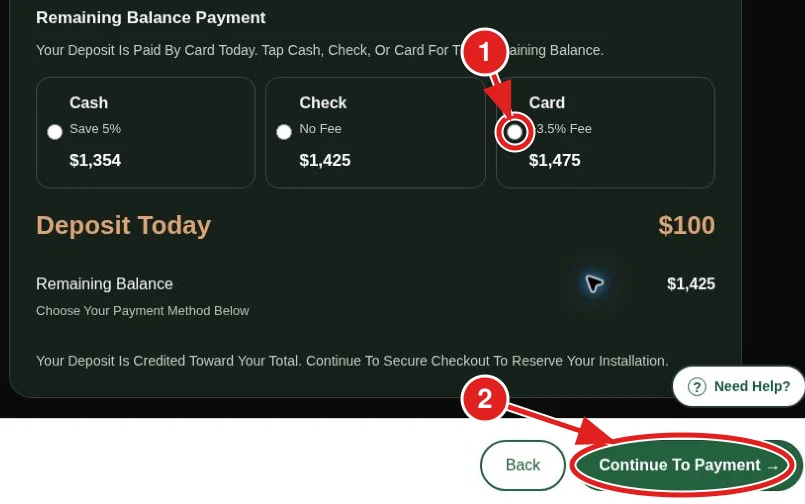
Read the updated price summary, including your package, selected extras, applicable savings, and project total. Then choose how you plan to pay the remaining balance.
- Tap Cash, Check, or Card. Compare the displayed adjustment and remaining balance for your choice.
- Review Deposit Today, then tap Continue To Payment when you are ready.
The screen distinguishes the deposit paid by card today from the payment method for the later balance. A cash or check balance choice does not mean there is no online deposit. The deposit is credited toward the total.
On the following checkout screen, review the required fields and terms, complete the payment information, and submit only when you are ready to reserve your installation. Wait for the confirmation before treating the booking as complete. This walkthrough stops before submitting a payment.
If You Get Stuck
Cannot continue after uploading? Check the image format and 15 MB limit, and wait for the photo to finish preparing. A field is missing? Follow the form’s message and check all contact and address fields. Not sure which add-on fits? Open its example photo and read the size description. Need to change packages? Use Back or Change Package and review your total again.
For a design that needs individual attention, use Request A Custom Package where shown, or Need Help?. You can also contact the team with questions before booking.